Blog
Timing, presentations, and staying on top.
Practical guides on keeping a timer visible while you present, focus, and run meetings.
-
Ease of use
How to set a timer on Mac: four ways
Set a timer on your Mac with the Clock app, Siri, the free web timer, or a countdown that stays visible while you work. Here is how each one works.
-
Presentation timers
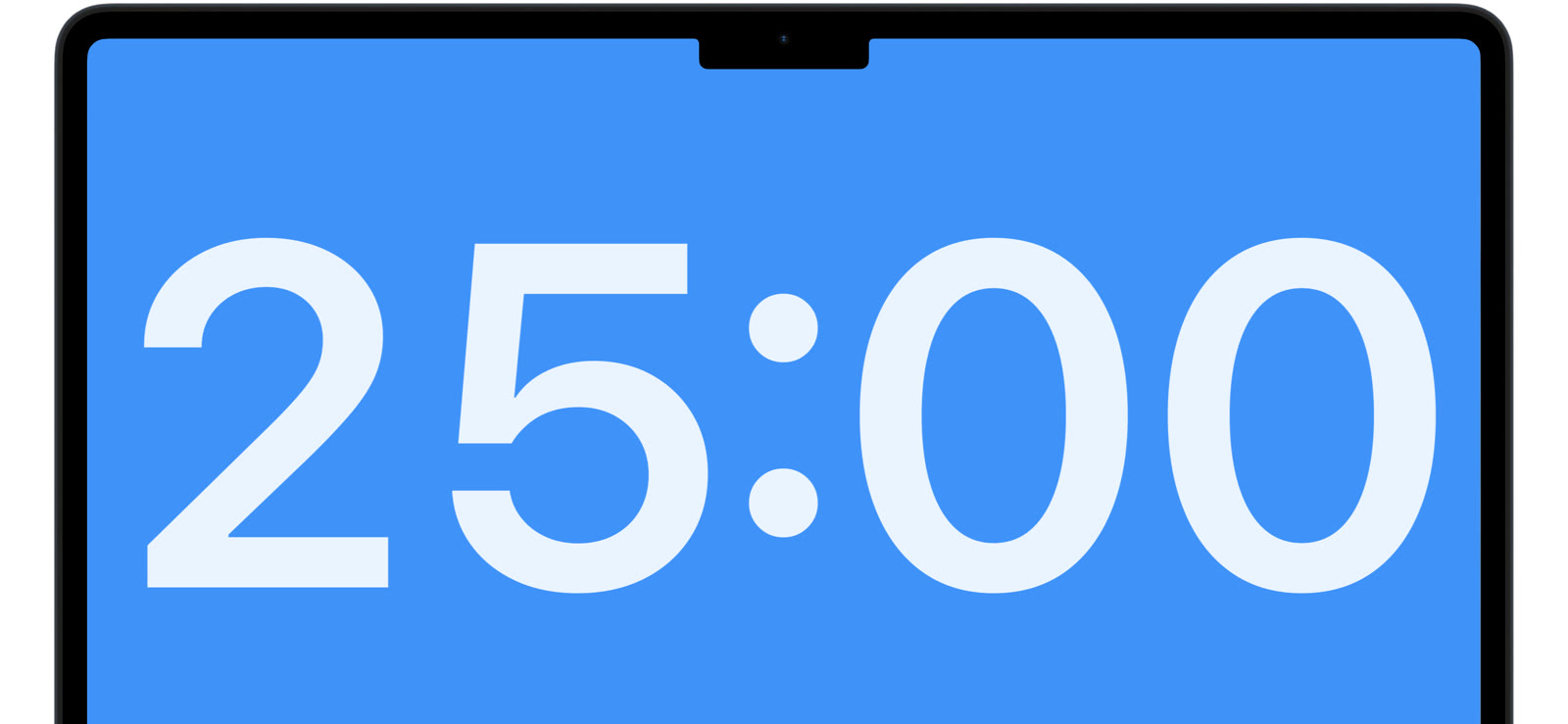
A big timer for the whole room
Make the countdown large enough to read from the back of the room. Resize the digits or take the timer full screen.
-
Classroom
A classroom timer the whole room can read
Put a large countdown on the classroom display for activities, transitions, and quiet time. Big digits, simple controls.
-
Ease of use
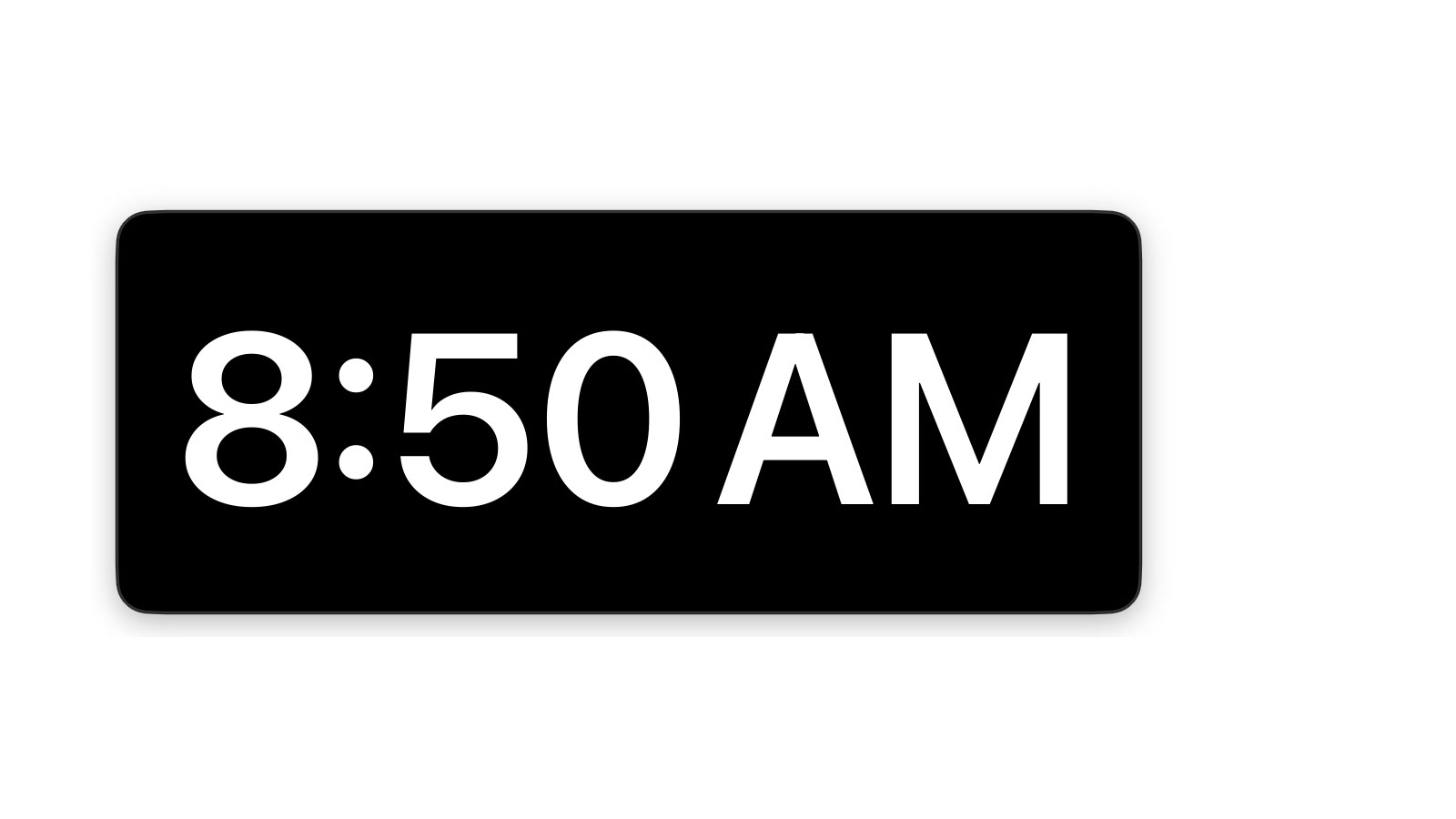
Keep the current time on screen with Clock mode
Show a clock that stays visible on your Mac: floating, in a corner, or full screen. Type "clock" and the time is on screen.
-
Presentation timers
A conference and lecture timer for the room
Run conference sessions and lectures on schedule with a countdown the speaker and the room can see.
-
Ease of use
Count down to a time: type "5pm"
Countdown to a clock time instead of a duration. Type "5pm" or "2:15pm" and the timer does the math.
-
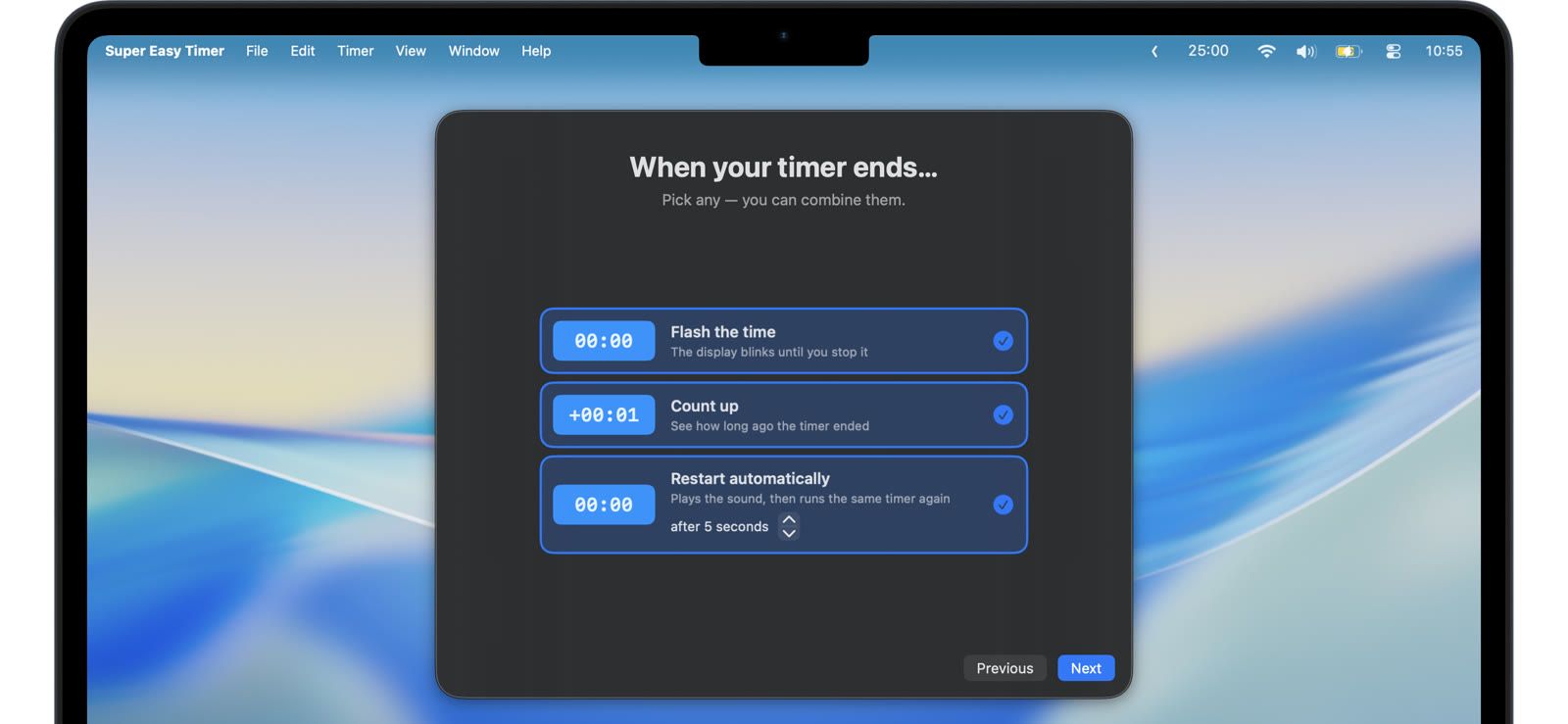
Classroom
A debate timer with repeatable rounds
Time debate speeches, rebuttals, and prep with a countdown the room can see. Reset in seconds between speakers.
-
Everyday
An egg timer for your Mac
Cooking with a Mac in the kitchen? Type "7 min" and you have an egg timer with an alarm you will not miss.
-
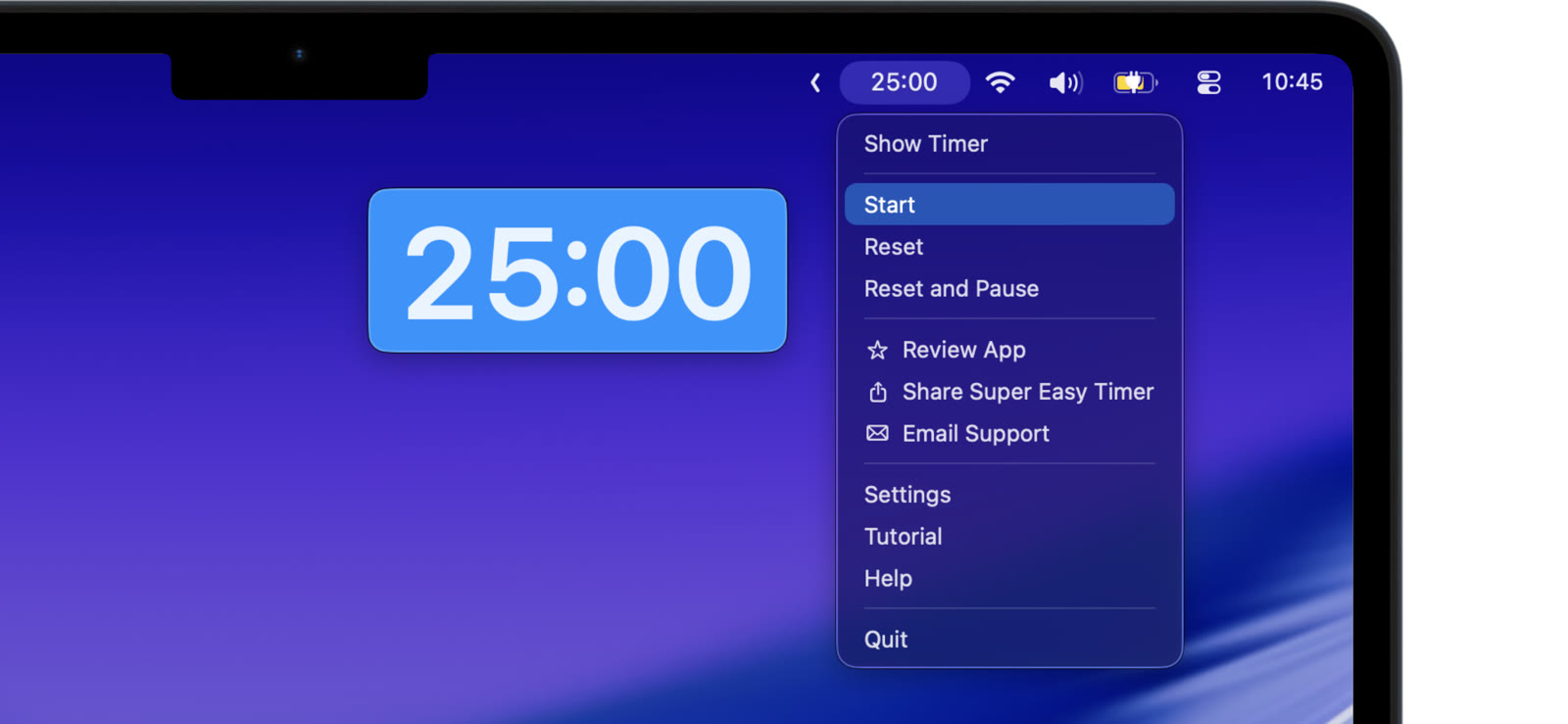
Focus / productivity
Track elapsed time while you work
See how long you have been at it. Count up from zero, or count down and keep going past zero to measure overtime.
-
Classroom
Run an exam with a countdown everyone can see
Show a full screen exam timer on the room display. Students see exactly how much time is left, and you stop repeating it.
-

Everyday
A game timer that floats over the board or the stream
Time turns, rounds, and sessions with a countdown that floats above your game, even in full screen.
-
Focus / productivity
A simple interval timer for Mac
Repeat a countdown at a fixed interval, with an optional rest between rounds. One timer, on a loop, for anything.
-
Meetings
Keep meetings on time with a visible countdown
Put a timer where the whole meeting can see it. Time-box agenda items, standups, and the meeting itself.
-
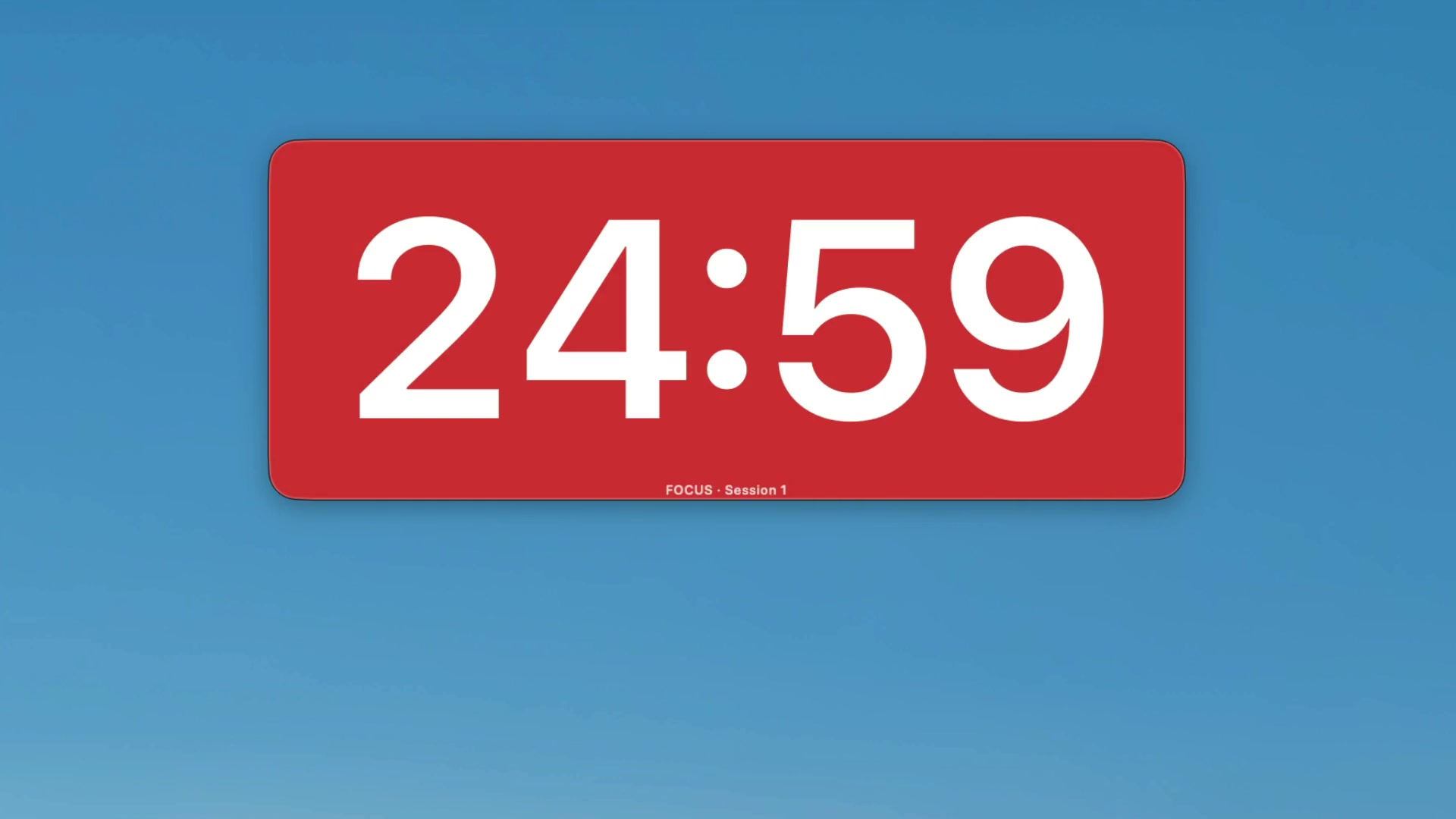
Focus / productivity
Pomodoro timer for Mac: type "pomodoro" and go
Run Pomodoro focus sessions on your Mac without a complicated productivity system. Type "pomodoro" and the timer is ready.
-
Presentation timers
A countdown timer on top of PowerPoint
Keep a timer visible over PowerPoint in full screen slideshow mode. Time your talk without leaving your slides.
-
Classroom
A quiz timer for fast rounds
Time quiz questions and rounds with a countdown the whole room can see. Repeat the same timer for every question.
-
Presentation timers
A speaker timer for talks and events
Give every speaker a countdown they can see from the stage. Set the slot, start the timer, and keep the event on schedule.
-
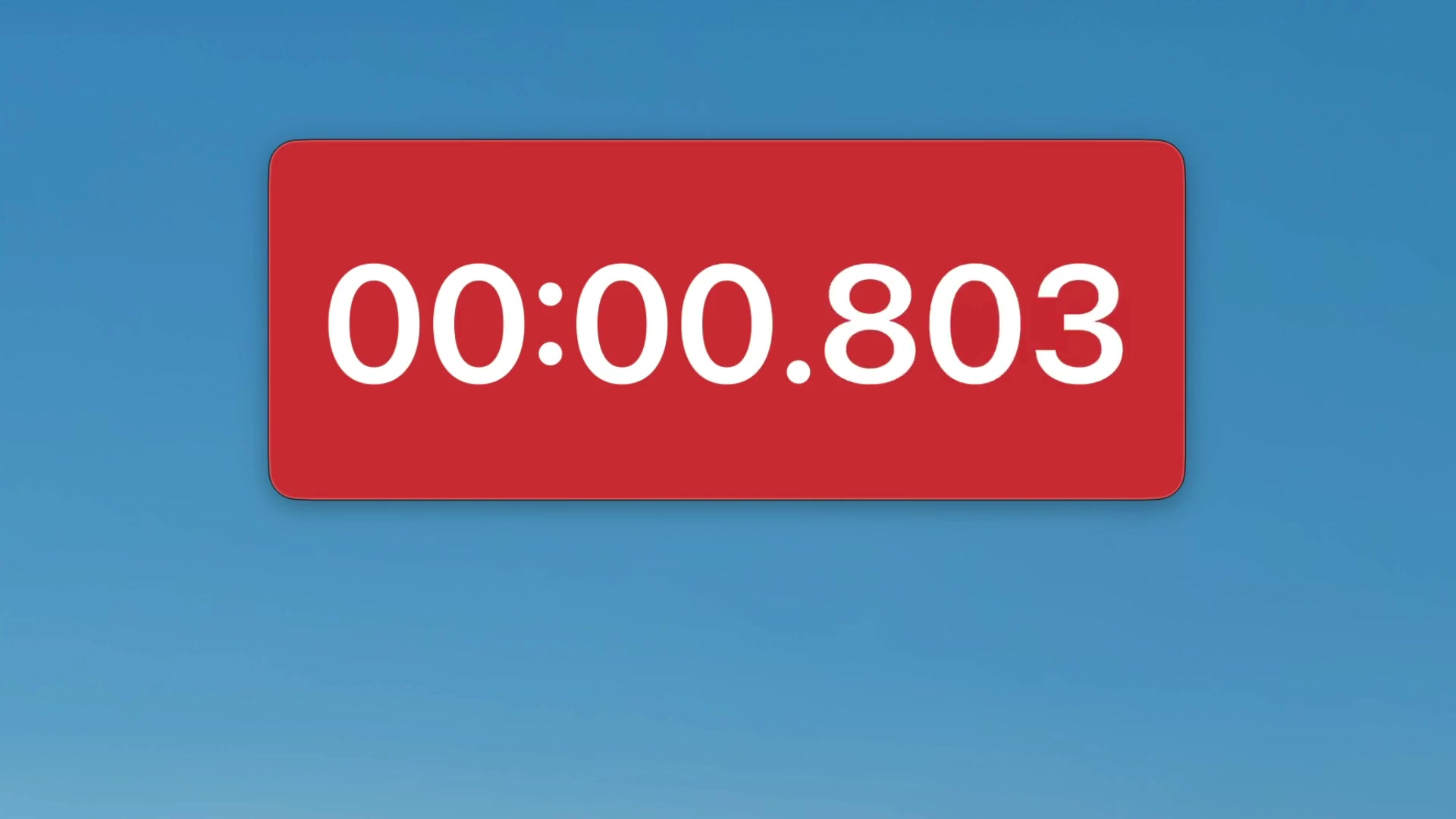
Focus / productivity
A stopwatch for Mac that counts up from zero
Count up and track elapsed time on your Mac. Type "stopwatch" and the timer starts counting from zero.
-
Focus / productivity
A study timer that stays out of your way
Set a study session, keep the countdown in the corner of your screen, and get to work. No accounts, no streaks, no clutter.
-
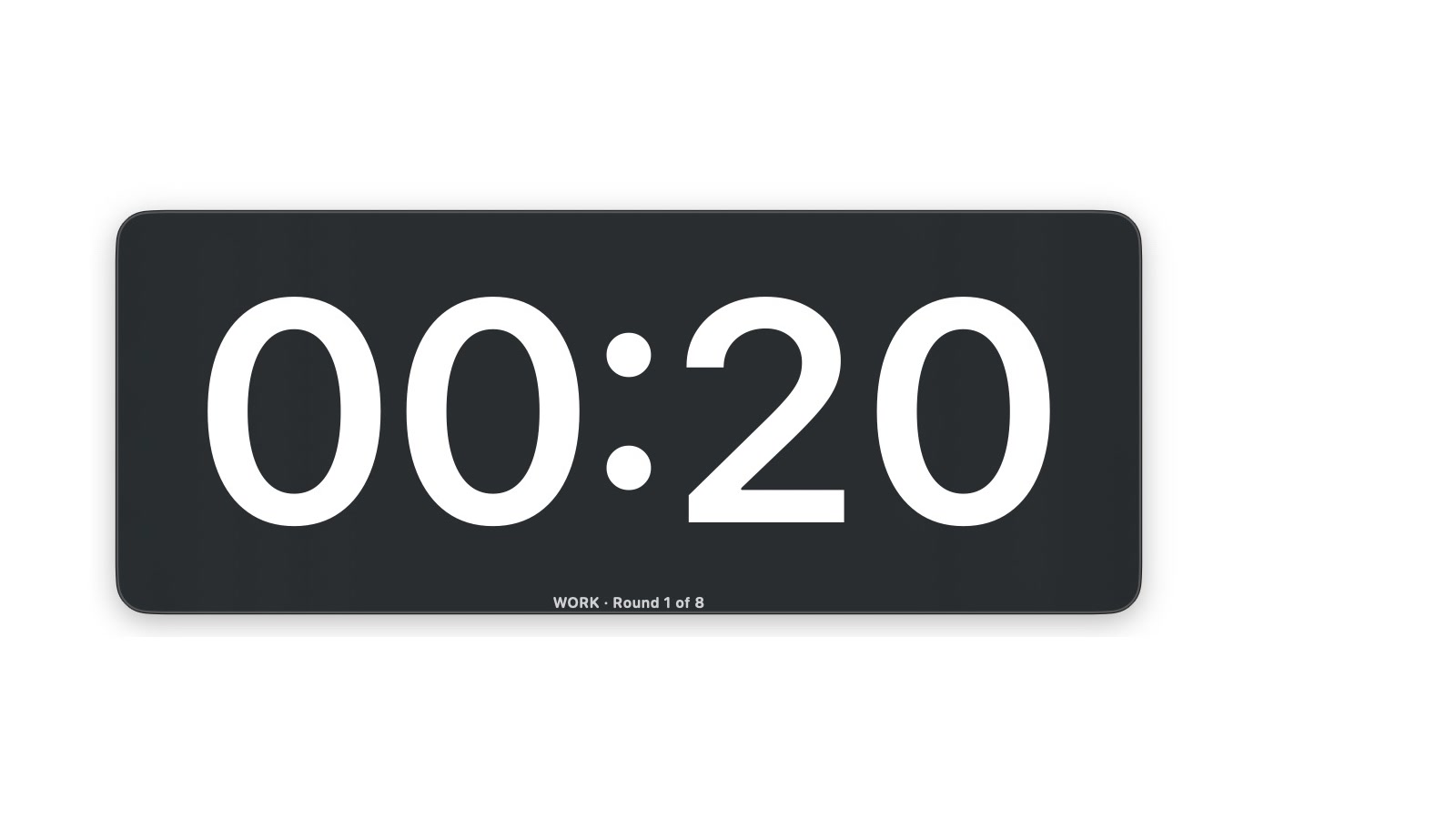
Workouts
A simple Tabata timer for Mac
Run Tabata intervals on your Mac: work, rest, rounds, repeat. Type "tabata" and the timer handles the cycle.
-
Ease of use
Control the timer from any app with keyboard shortcuts
Start, pause, and reset the timer without switching apps. Global keyboard shortcuts keep your hands on the keyboard.
-
Presentation timers
Timing Toastmasters speeches on a Mac
Serve as timer at your Toastmasters meeting with a countdown you and the speaker can both see, plus measured overtime.
-
Kids
A visual timer for kids
Show kids how much time is left with a big, clear countdown on the screen. Simple for parents and teachers to run.
-
Kids
Visual timers and time blindness
When your brain does not feel time passing, put the time where your eyes are. How a visible countdown helps with time blindness and ADHD.
-
Workouts
A workout timer for rounds, rest, and repeat
Time intervals, rounds, and rest on your Mac. Set a repeat timer with a delay, or type "tabata" for classic intervals.
-
Meetings
Show a timer on a shared Zoom screen
Keep a countdown visible while you present on Zoom, or share it so the whole call sees the time. Here is how it works.
-
Always-on-top utilities
How to keep a timer always on top on Mac
Pin a countdown above every window on your Mac, and keep it visible even over full screen apps. Here is how the always on top timer works.
-
Presentation timers
How to put a presentation timer on top of Keynote
Keep a countdown visible over Keynote and PowerPoint, even in full-screen presenter mode. Here is how to time your talk without leaving your slides.
-
Always-on-top utilities
A floating timer for Mac that stays in view
Float a countdown above your work so you never lose track of time. Here is how the floating timer works on Mac, and how to place it.
-
Always-on-top utilities
Put a countdown timer in your Mac menu bar
Keep a timer in the macOS menu bar so the countdown sits at the top of your screen. Here is how the menu bar timer works.
-
Presentation timers
A full screen countdown timer for Mac
Show a full screen countdown everyone in the room can read. Here is how to run a full screen timer on Mac for classes, talks, and meetings.
-
Ease of use
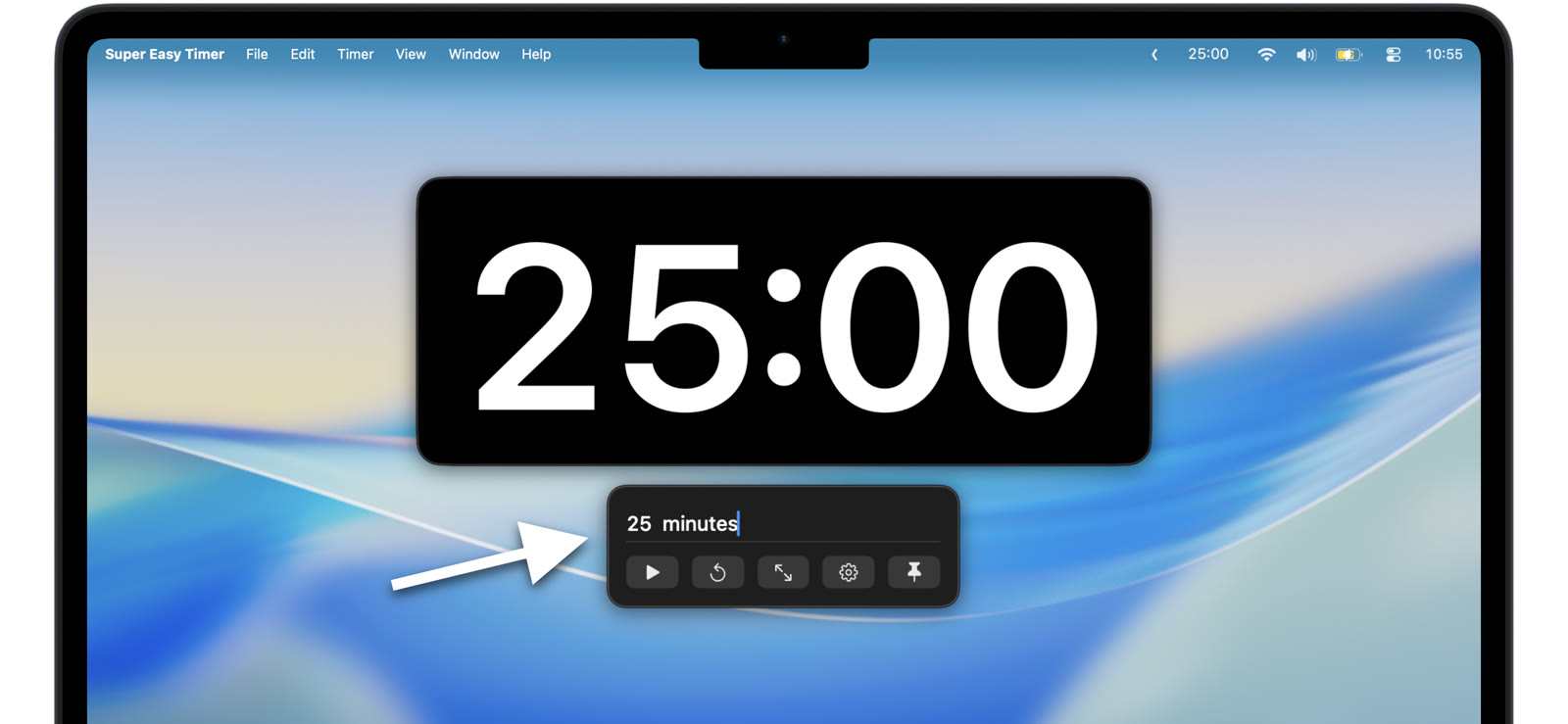
Start a timer by typing: 5 min, 25, or 5pm
Skip the dials. Type how long you want and press Return. Here is how natural language timer input works in Super Easy Timer.
-
Ease of use
Add time to a running timer without restarting
Need a few more minutes? Add or remove time while the timer runs, without losing your place. Here is how.
-
Focus / productivity
Set a repeat timer with a delay for breaks and routines
Run the same countdown again and again, with an optional delay between rounds. Here is how repeat timers work in Super Easy Timer.
-
Meetings
Count up after zero to see how far overtime you are
When the timer hits zero, keep counting so you can see how far over you went. Here is how count up helps talks and meetings.
-
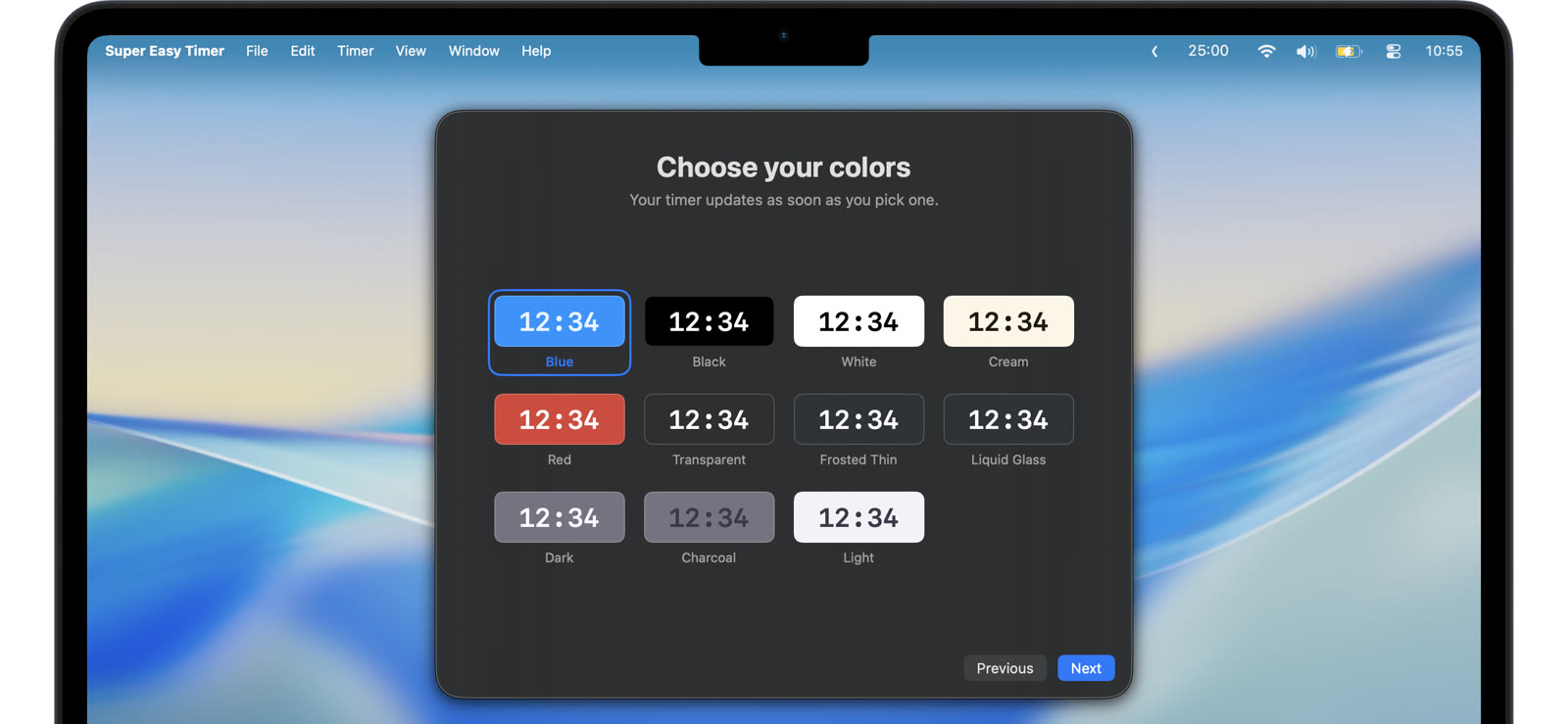
Customization
Timer themes: transparent, frosted, and Liquid Glass
Match the timer to your screen with transparent, frosted, Liquid Glass, and color themes. Here is how to make the timer yours.
-
Focus / productivity
Resize the timer large or small with Mini Mode
Make the timer big for the room or tiny for the corner of your screen. Here is how resizing and Mini Mode work in Super Easy Timer.