Presentation timers
How to put a presentation timer on top of Keynote
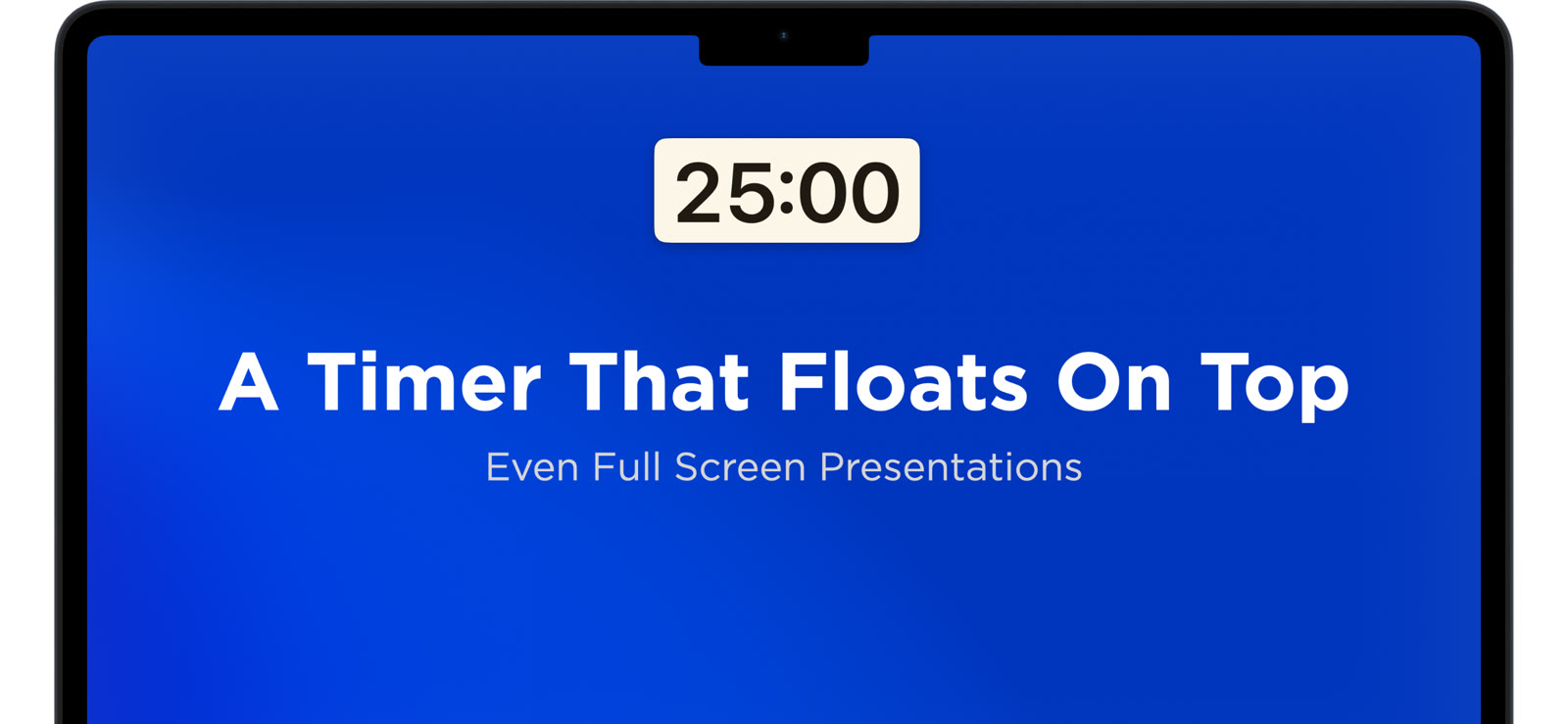
You rehearsed the talk. You know the slides. Then you start presenting and the one thing you cannot see is the clock. Keynote goes full screen. Your menu bar disappears. The timer you set on your phone is face-down in your bag.
This is the gap Super Easy Timer fills. It stays visible over full-screen apps and presentations, including Keynote and PowerPoint. Your countdown sits on top of the slides while you present.
Why a normal timer fails during a presentation
Most timers live in a window. The moment Keynote takes over the screen, that window goes behind the slideshow. Presenter Display helps if you have a second monitor, but plenty of talks run on a single screen: a conference projector, a classroom display, a shared meeting room.
You end up with bad options:
- Glance at a watch and lose your place.
- Trust your sense of time and run long.
- Tab out of the slideshow to check, which breaks the flow on screen.
A timer that stays on top of the presentation removes the guesswork.
Set a presentation timer that stays on top
Here is the short version.
- Open Super Easy Timer.
- Type your talk length. “20 minutes”, “20 m”, or just “20”, then press Return.
- Choose the placement mode that stays on top of full-screen apps.
- Start your Keynote or PowerPoint presentation.
The countdown stays visible over the slides. You watch the clock without leaving the slideshow.
Pick the right placement mode
Super Easy Timer has four placement modes:
- Full screen: the timer takes the whole display.
- Pinned on top of all windows: floats above your normal apps.
- In the menu bar: compact, always there.
- On top of full-screen apps: the one you want for Keynote and PowerPoint.
For presentations, use the mode that stays on top of full-screen apps. It is a passive, non-activating overlay, so it does not steal focus or click through your slides.
Practice your timing before the room is full
The same setup works while you rehearse. Set the timer, run your deck, and learn where you tend to run long. Use the count-up-after-zero option to see how far over you go. Adjust, then run it again.
Try the free web timer to see the countdown in action. For the version that stays on top of Keynote and PowerPoint, get the Mac app below.
Keynote and PowerPoint both work the same way
Nothing about this is Keynote-specific. PowerPoint in full-screen slideshow mode behaves the same way, and so do most full-screen apps. Set the timer once, present in whatever app you like.
If you give talks, teach, or run timed sessions, a presentation timer that stays on top of your slides is the difference between guessing and knowing.