A timer that stays on top of every window.
Keep it visible while you work, present it full screen, or read the countdown from across the room.

No fiddling. Just type.
Skip the dials and scroll wheels. Type "5 min", "20 minutes", "2h 30m", or "25" and press Return. Need a countdown to a clock time? Type "5pm". Add time as you go with "Add 5 min" without restarting. The new modes work the same way: type "pomodoro", "tabata", "stopwatch", or "clock".
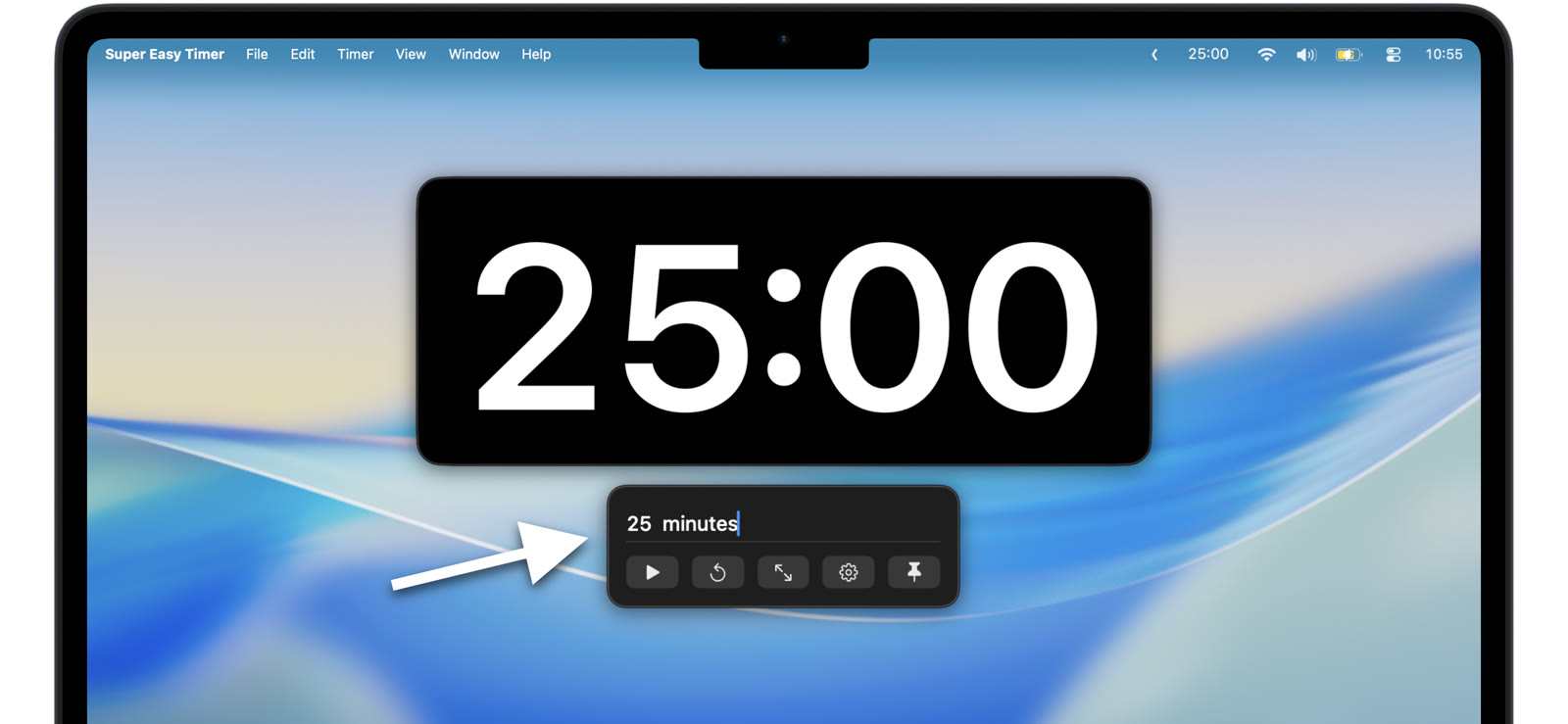
Keep the countdown visible
Keep it in the menu bar so the time sits at the top of your screen, or tuck it into a corner while you work. The timer gets out of the way and stays glanceable. Control it from any app with global keyboard shortcuts.
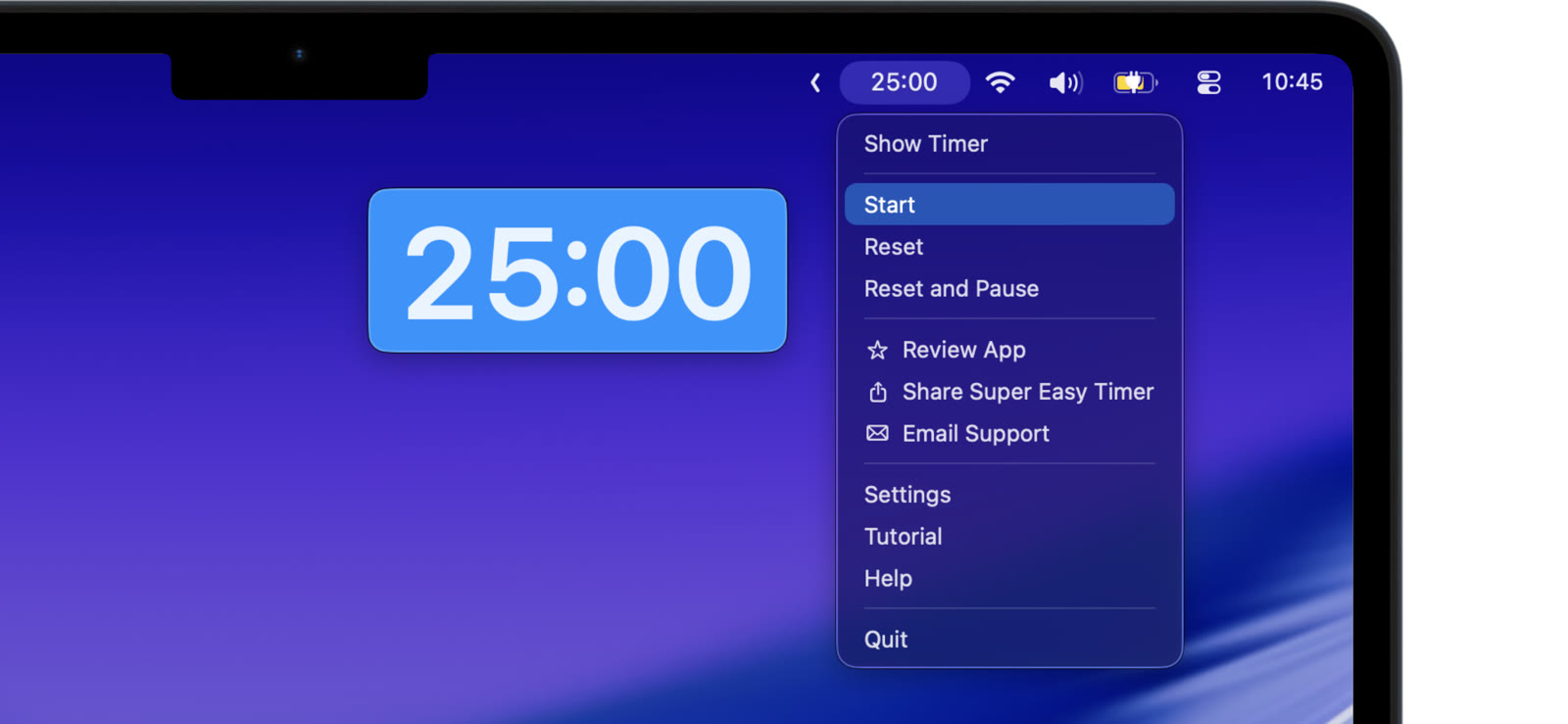
A timer that floats on top
Float the timer over every app and keep it in view while you work and switch windows. It stays on top of full screen apps and presentations too, including Keynote, PowerPoint, and Zoom, without stealing focus.
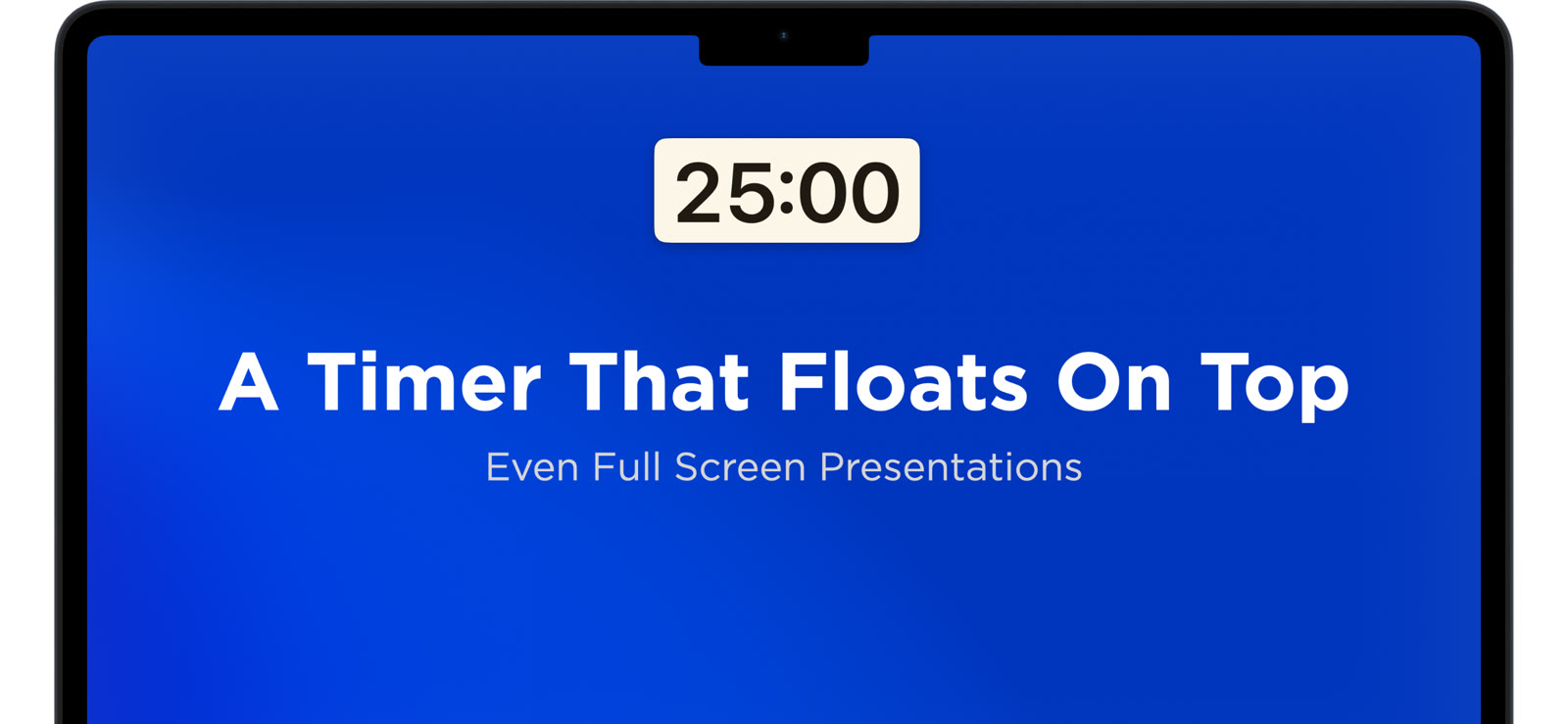
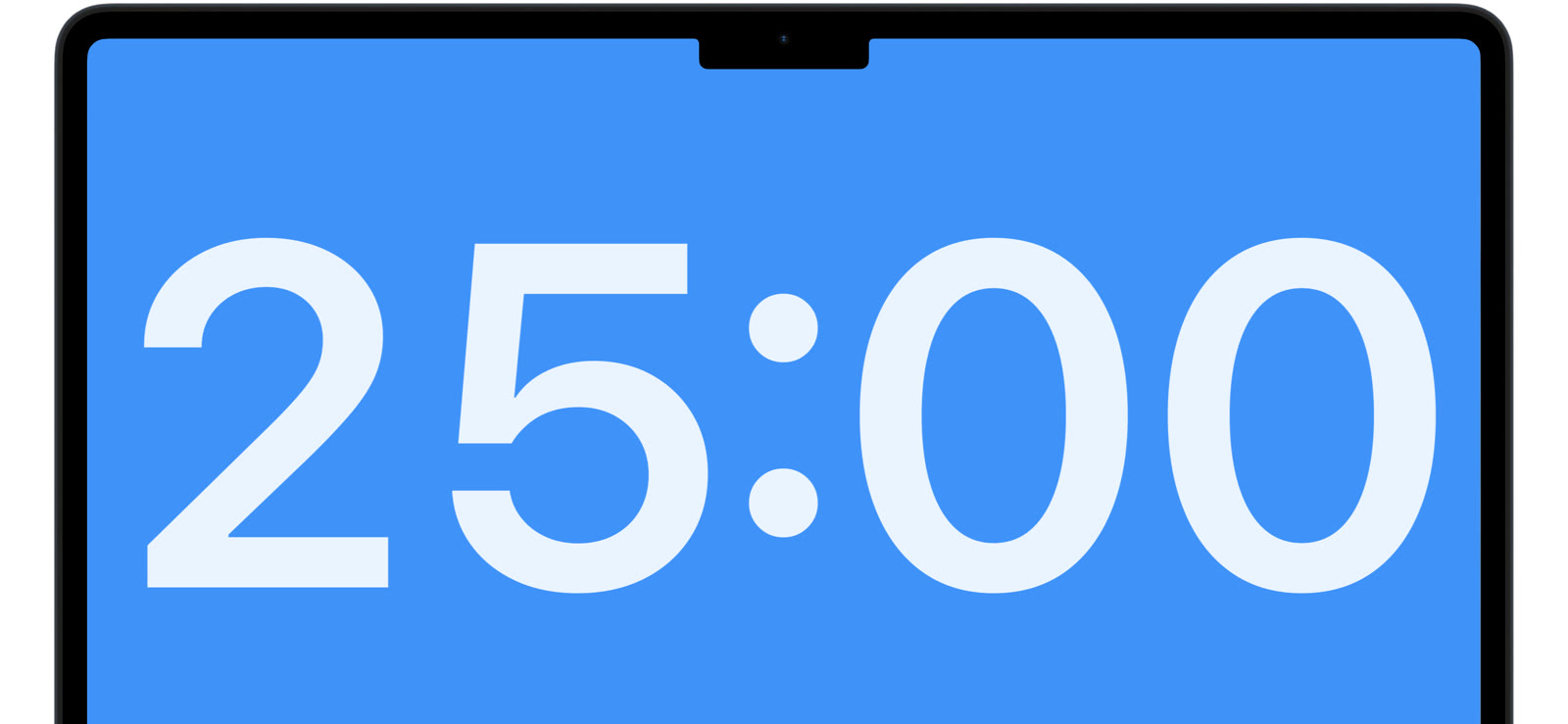
Show how much time is left
Make it a full screen countdown everyone in the room can read. Clear digits, no clutter. Built for classes, talks, meetings, webinars, and shared screens.
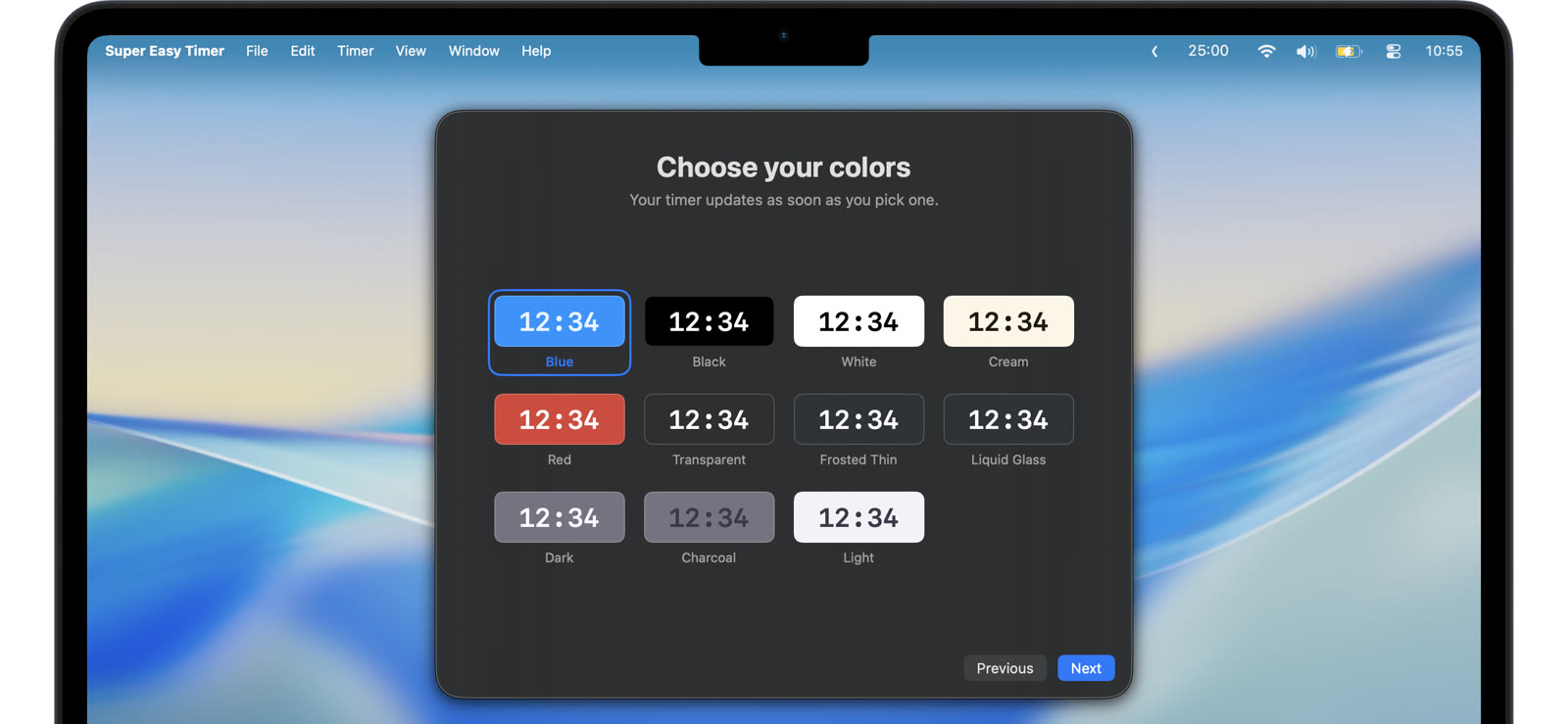
Make the timer yours
Pick from transparent, frosted, Liquid Glass, blue, red, black, white, and cream. Controls and the text input fade away while you work, then come back when you need them.
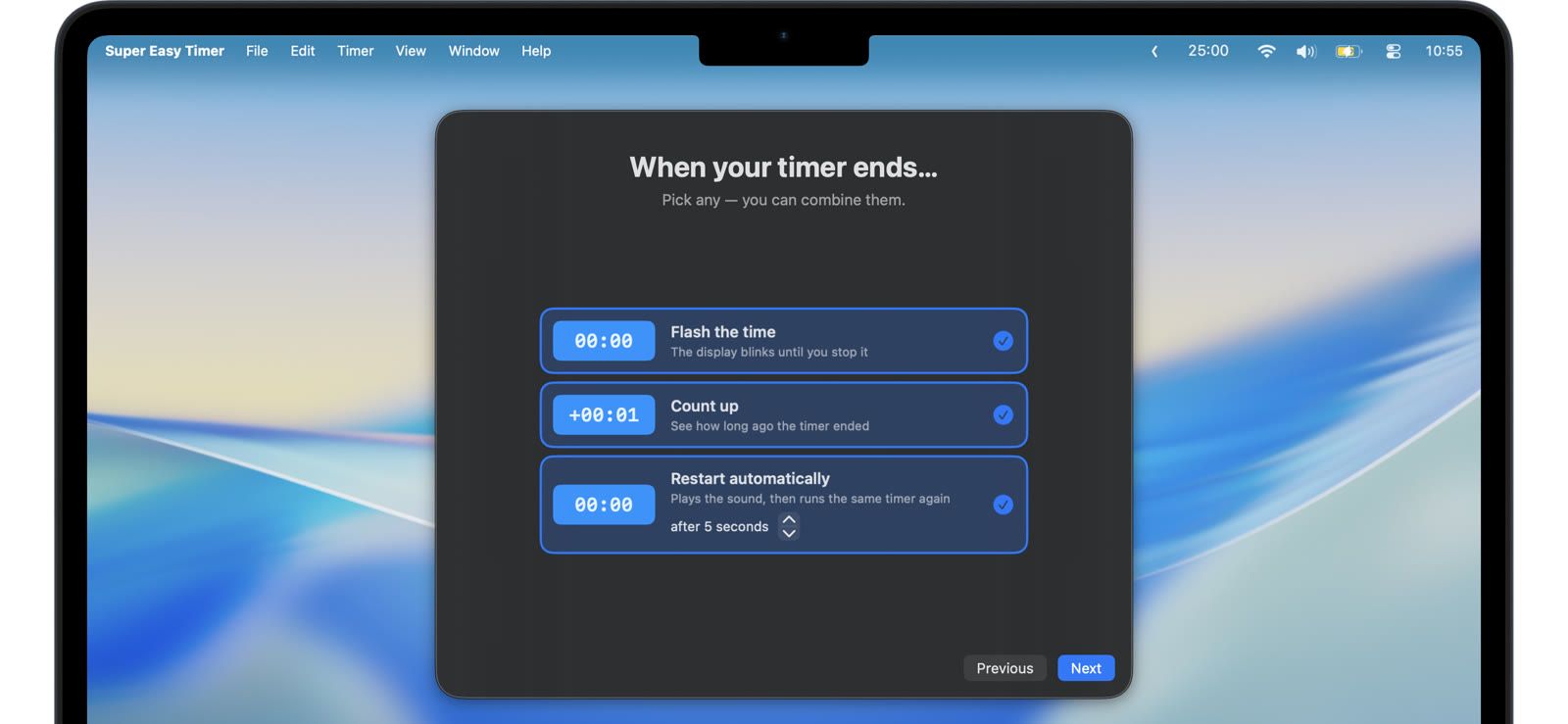
Repeat timers, count up, and alarms
Set repeat timers with an optional delay for breaks, routines, and sessions. Count up after zero to see how far overtime you are. Restart automatically, flash the timer, and choose how many times the alarm repeats.
Made for people who need timers
Speakers and teachers keep their talk on time. Focus sessions stay on track. Meetings and standups end when they should. Workouts, cooking, and routines get a simple repeat timer. One timer, every place you need to see the time.

Why I made this
Hi, I'm Paul.
Some days I look up and wonder where the time went. That is why I made Super Easy Timer. The other timers I tried were clunky, or they crashed right when I needed them. I wanted one that starts fast, stays on screen, and gets out of the way while I work.
I use it every day. To stay focused. To catch a meeting. To leave on time to pick up my daughter. For years I wanted a timer that stays visible over full screen apps. That took a long time to get right. Now it just works.
I built it for myself, and I keep making it better so it works for you too. It is free right now. I hope it helps you be more productive and stay on time.
Paul Solt, maker of Super Easy Timer
Loved by Mac users
Here is what people say on the Mac App Store.
-
★★★★★
I used it as a timer for a forum with political candidates and it made a huge difference. The numbers are clear, the interface intuitive, and it absolutely delivered.
-
★★★★★
The ability to enter time works better than any other timer I've tried (10, 10m, 2pm, add 1 hour, 2m). It's nice to have the options for a floating window or menu bar icon.
-
★★★★★
I love how easy it is to use, how simple it looks, how effortlessly it starts, and how effective it is at focusing.
-
★★★★★
I absolutely love these bespoke pieces of software that do one thing extremely well. I enjoy having it right at the top of my screen and it works beautifully.
-
★★★★★
Having the ability to input times in various formats and it just works is so nice.
-
★★★★★
I'm using it daily to keep my schedule. It is simple and just works. You will get more stuff done in less time!
Frequently asked questions
- How do I keep a timer always on top on Mac?
- Type a time like "25 min" and press Return, then turn on always on top. The timer floats above your other windows and stays in the corner you drag it to while you work. Learn more
- Can I see the timer while presenting in Keynote or PowerPoint?
- Yes. Most always on top tricks stop at full screen. Super Easy Timer stays visible over full screen Keynote, PowerPoint, and Zoom, and it does not steal focus from your slides. Learn more
- Is there a timer in the Mac menu bar?
- Yes. The countdown sits at the top of your screen, next to the clock, so the time stays visible without another window on your desktop. Learn more
- Does Super Easy Timer have a Pomodoro timer?
- Yes. Type "pomodoro" and press Return to start a focus session with breaks. Type "pomodoro setup" to change the session and break lengths. Learn more
- Can the timer keep counting after it reaches zero?
- Yes. Turn on count up and the timer keeps going after it reaches zero. Instead of stopping, it shows how long ago the time ran out. Learn more
- Can I show a full screen countdown to a classroom?
- Yes. The digits fill the display, large enough to read from the back of the room. Type the length of the quiz, like "45 min", or type "10:30am" to count down to the time the exam ends. Learn more
- Does it work as a stopwatch?
- Yes. Type "stopwatch" and the timer counts up from zero, with tenths, hundredths, or milliseconds. Learn more
- Is Super Easy Timer free?
- Yes. Super Easy Timer is a free download on the Mac App Store. No ads. No accounts. It requires macOS 15 or later. Get the free Mac app