Focus / productivity
A stopwatch for Mac that counts up from zero
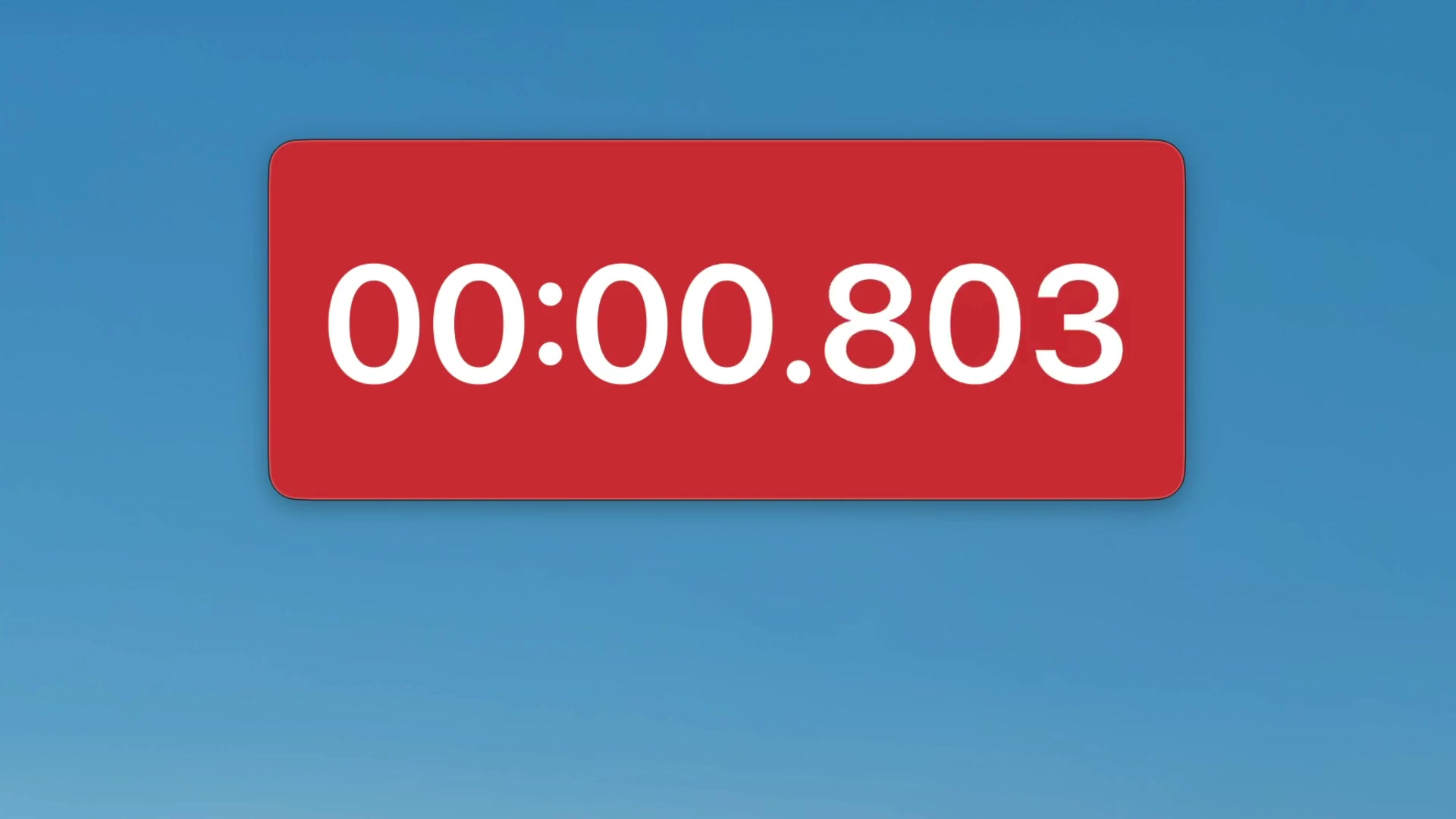
Sometimes you do not want a countdown. You want to know how long something takes. Super Easy Timer has a stopwatch built in: type “stopwatch” and it counts up from zero.
macOS does have a stopwatch in the Clock app, but it runs in a normal window: switch to your work and the count is buried. A stopwatch you cannot glance at is not doing its one job.
Count up, not down
Stopwatch mode starts at zero and climbs. Time a task, a call, a run, a build, a rendering job. Stop when it is done and the number is your answer.
- Type “stopwatch” and press Return. The count starts.
- Pick the precision the job needs: tenths, hundredths, or milliseconds.
- Click the timer to pause, and click again to resume.
Milliseconds earn their place when you are timing a screen recording cut or a race result. For a phone call or a workout, tenths keep the display calm.
Keep the elapsed time in view
A stopwatch buried behind windows is a stopwatch you forget to stop. Pin it always on top, keep it in the menu bar, or shrink it into a corner of your screen. The elapsed time stays visible while you work.
Start it when the support call connects, work the problem in every other app, and the running total sits next to the clock the whole time. Rehearsing a talk works the same way: speak, glance, and you know your pace without touching anything.
Countdown and count up in one timer
You do not have to choose one app for each. Type “25 min” for a countdown, “stopwatch” to count up, or turn on count up after zero to get both in a single run: the countdown ends, then the overtime starts climbing. The overtime number is the same stopwatch, just starting from your deadline instead of zero.
Need elapsed time right now? The free web timer counts down in any browser. Stopwatch mode with millisecond precision comes with the Mac app.
No lap buttons to learn, no modes to dig through. Type, press Return, and the clock is running.