Classroom
Run an exam with a countdown everyone can see
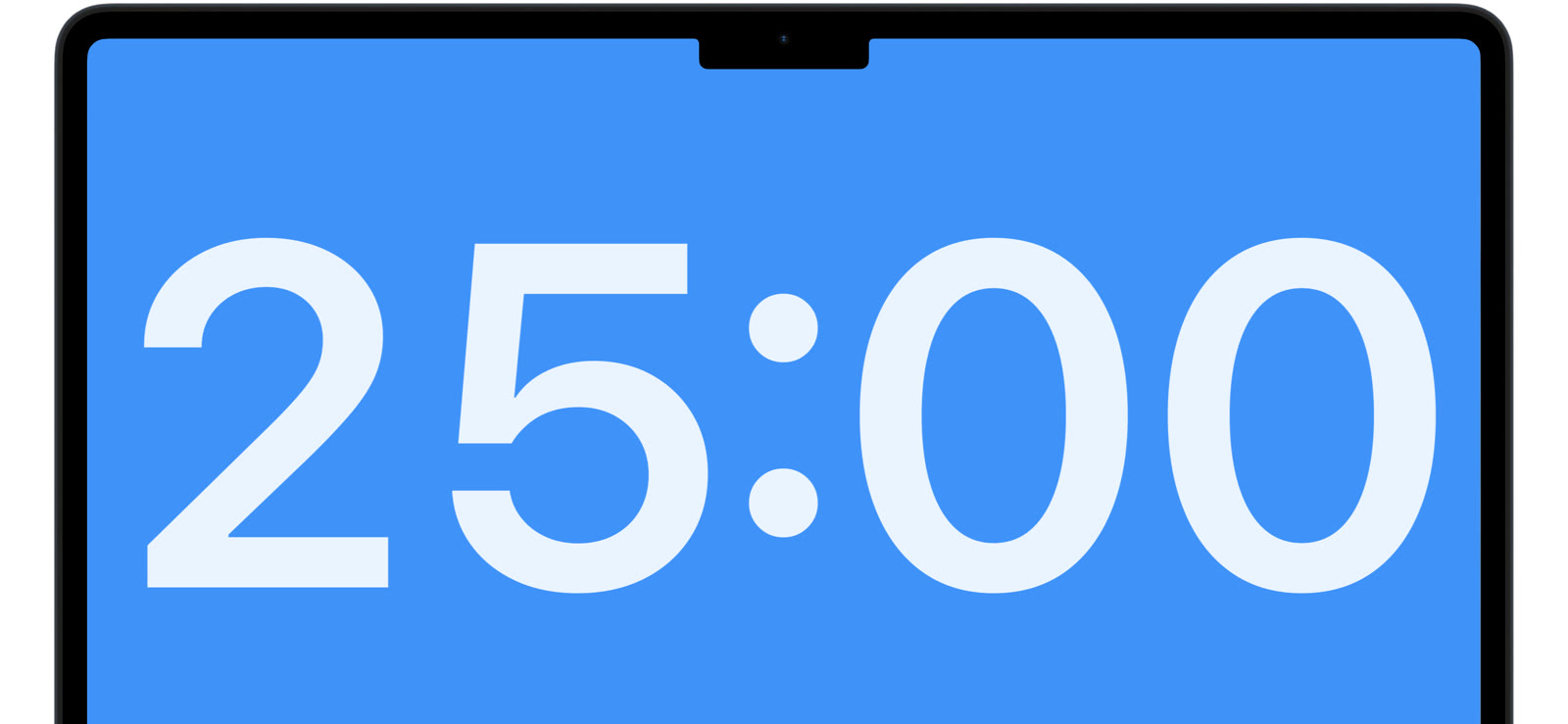
Every exam has the same soundtrack: “How much time is left?” Put the countdown on the display and the question answers itself.
One line to start
Type the exam length: “90 min”, “1h 30m”, or just “90”. Press Return and the countdown is running. If the exam ends at a set time instead, type the clock time: “10:30am” counts down to 10:30.
Full screen, no distractions
Take the timer full screen and the display shows one thing: time remaining. No notifications, no desktop, no slide deck peeking out from behind. Students glance up, see the number, and get back to work.
Getting the countdown onto the room display works like any window: mirror your display, or move the timer to the projector display before you go full screen.
Try the free web timer to see the full screen countdown. The Mac app adds add-time, the flash, and the quiet alarm options below.
Add time without breaking the room
Extended time, a fire drill, a printer failure: exams do not always go to plan. Type “Add 10 min” or “+10m” while the timer runs and the countdown adjusts in place. No restart, no announcement needed. Here is how adding time works.
Quiet end, clear signal
Pick a gentle alarm or none at all, and let the flash mark the end visually. You decide how the exam ends: a sound, a flash, or just zero on the board.
Set it once at the start, and spend the exam proctoring instead of doing clock math on the whiteboard.