Ease of use
Keep the current time on screen with Clock mode
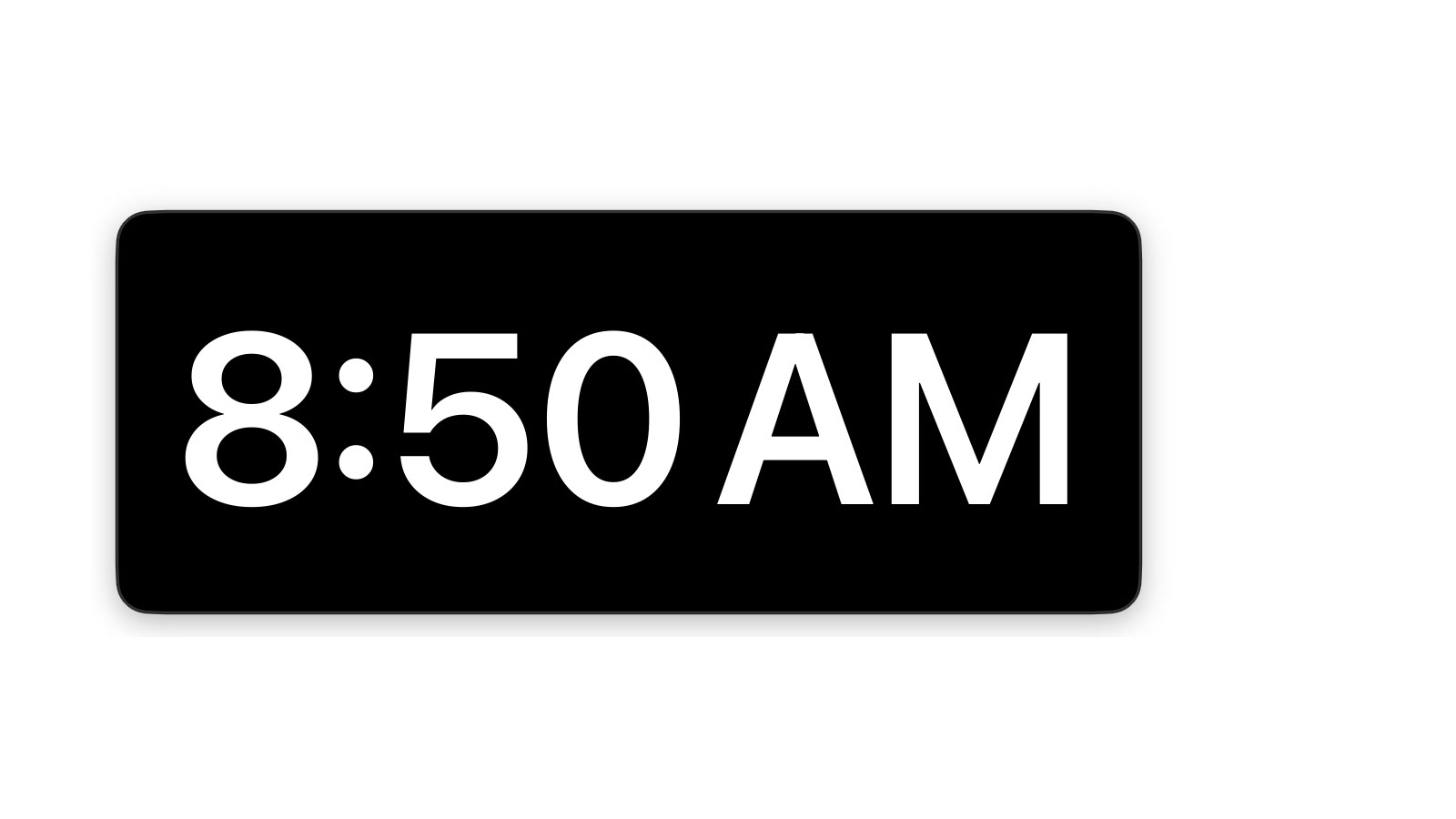
The Mac has a clock, but it lives in the corner of the menu bar and disappears in full screen apps. When you actually need to watch the time, that is not enough. Super Easy Timer has a Clock mode: type “clock” or “time” and the current time takes the display, with seconds if you want them.
The time, where you can see it
Clock mode shows the current time in the same readable display as the timer. Float it above your windows, shrink it into a corner, or take it full screen when the whole room needs to see the time.
It stays up in full screen apps
Recording, presenting, gaming, or writing in a full screen app hides the menu bar and its clock. Clock mode can stay pinned on top of full screen apps, so the time is there when you glance up.
Switch between clock and countdown by typing
The clock and the timer are the same app. Type “clock” to watch the time, then type “25 min” when it is time to work. One field, no settings to dig through.
Make the clock match your screen with transparent, frosted, and Liquid Glass themes. A clock on your desk is furniture. It might as well look right.